Genova
Time Report
Generating a Sample Report in Genova
This guide provides a step-by-step process for generating the Process Time Report within the Genova system. Each step includes a screenshot to visually guide you through the process. Follow these instructions carefully to ensure accurate report generation.
Tab Name: Create Policy - GENOVA INSURANCE
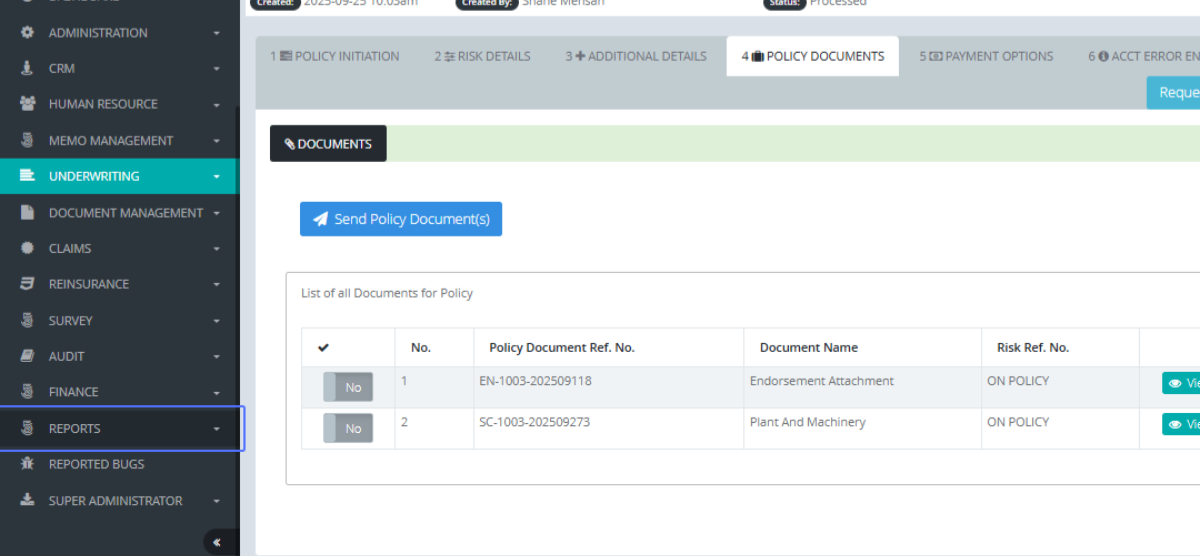
Navigating to the Reports Section: Click on the “REPORTS” Button on the sidebar
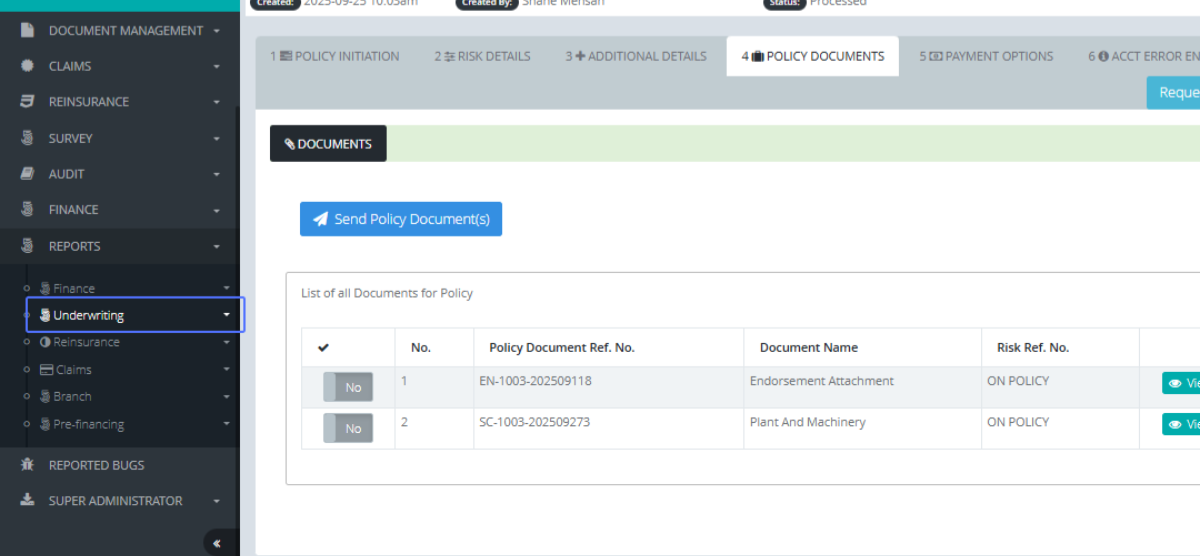
Accessing the Underwriting Reports: Select the Underwriting Button, or any applicable sector you wish to generate reports from.
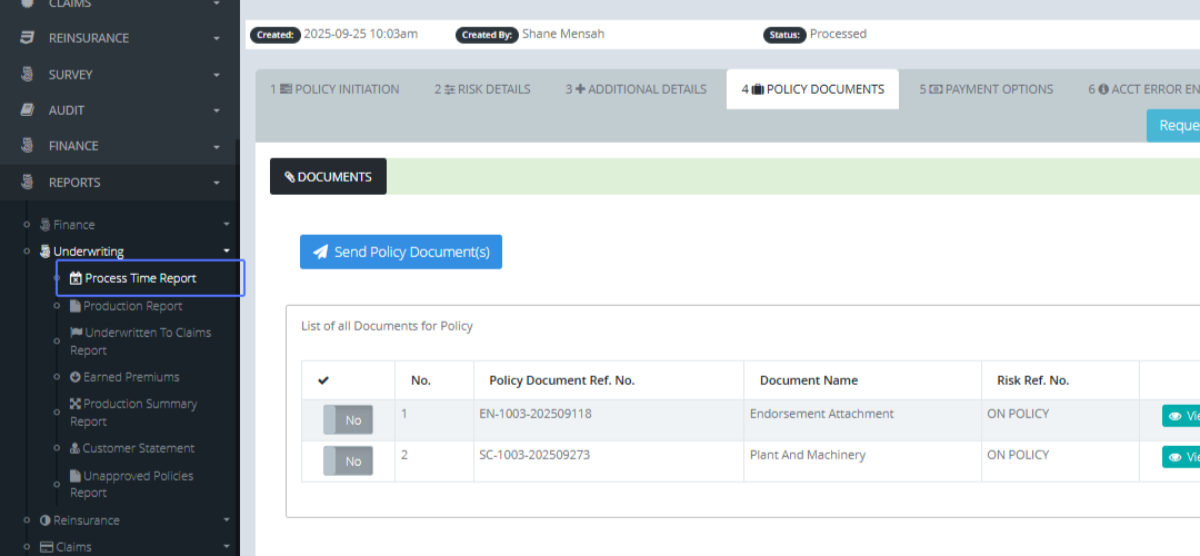
Selecting the Process Time Report: Select the type of report you want to generate, This time we are selecting the Process Time Report.
Tab Name: Process Time Report - GENOVA INSURANCE
Setting the Start Date: Select the start date of the report you want to generate.
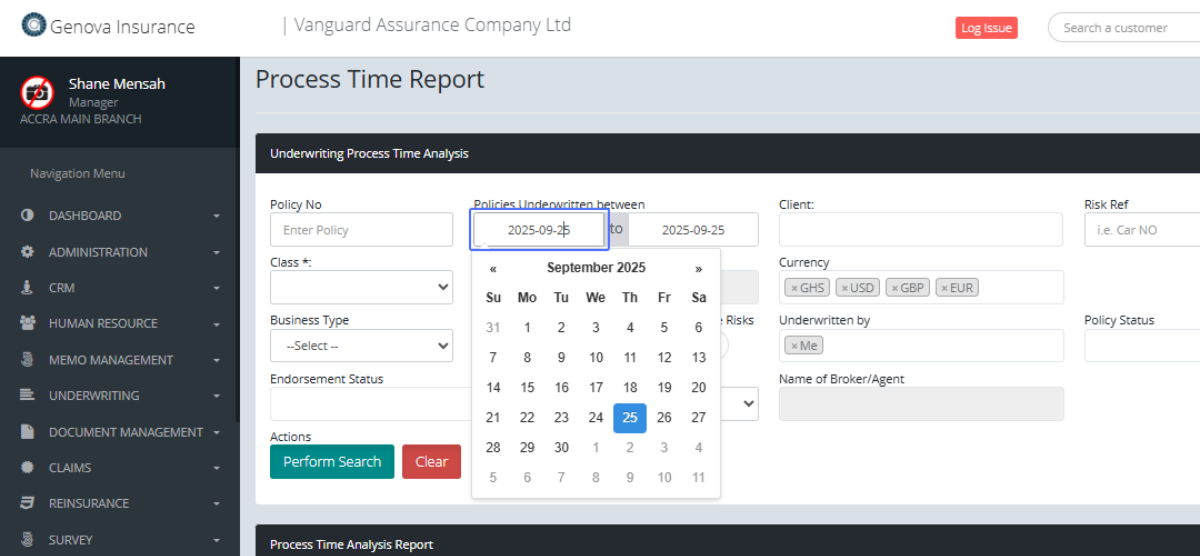
Selecting the Year (Start Date): Select the Year you want to generate the report from.
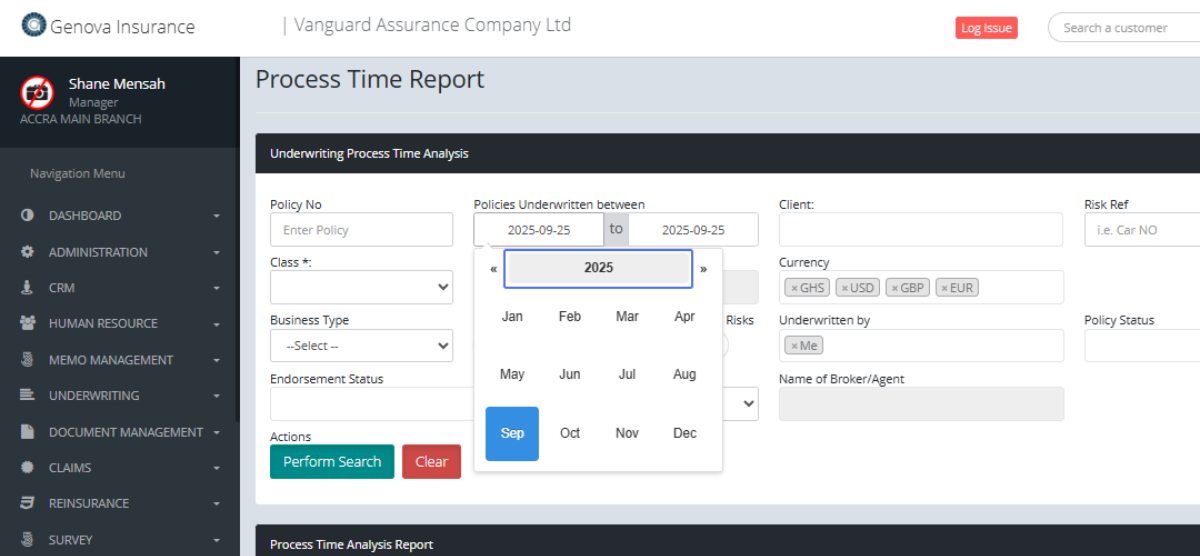
Selecting a Previous Year (if needed) (Start Date): Reports can be generated from the previous years
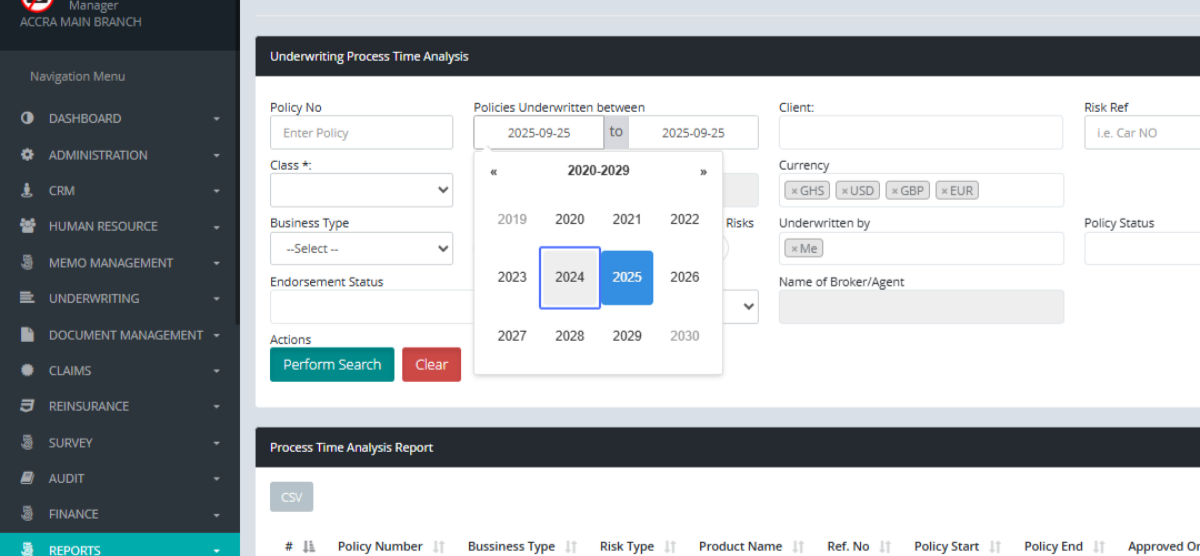
Selecting the Month (Start Date): Select the Month you want to start generating the report from.
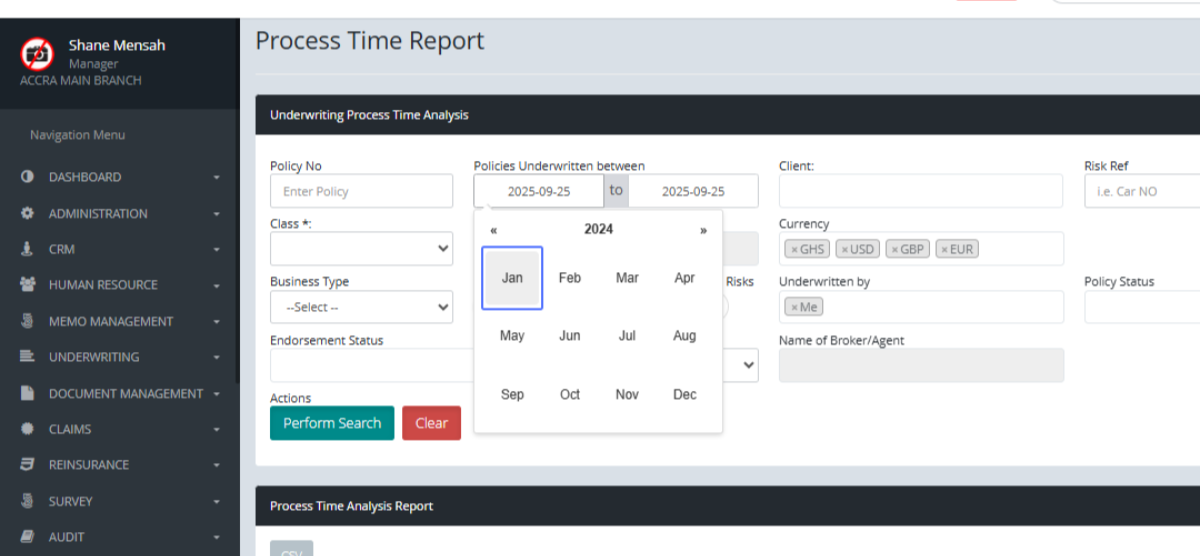
Selecting the Day (Start Date): Select the Day you want to generate the report from.
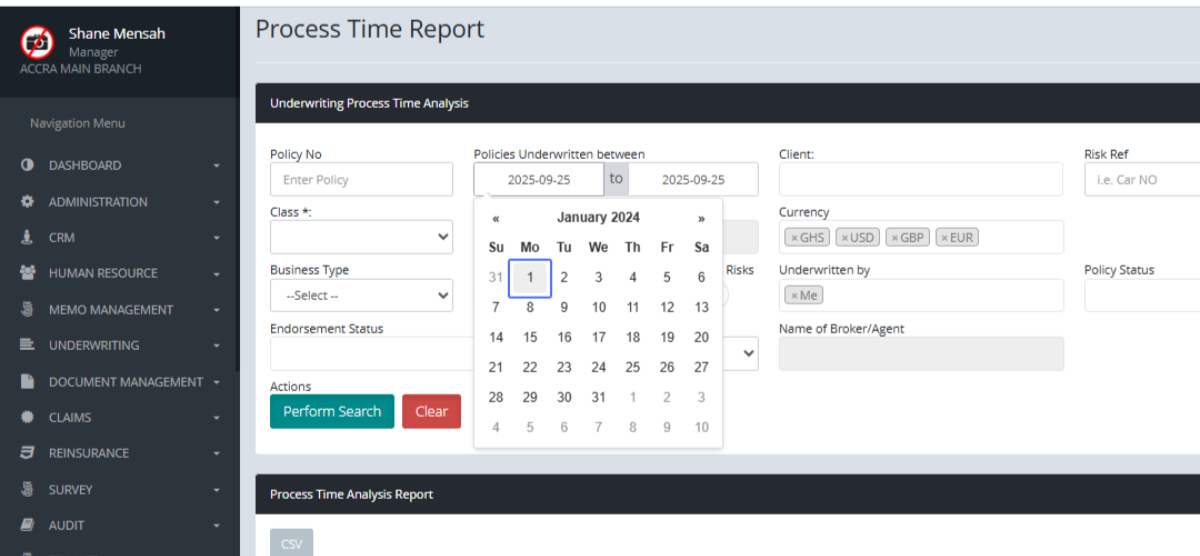
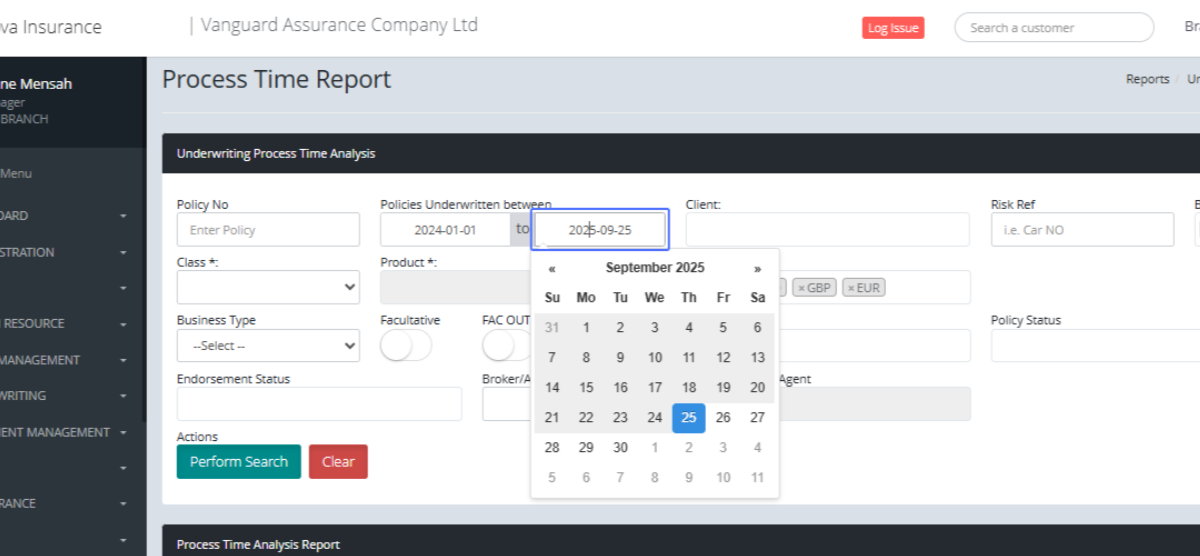
Setting the End Date: Select the end date you want to generate from. The system automatically picks the current date.
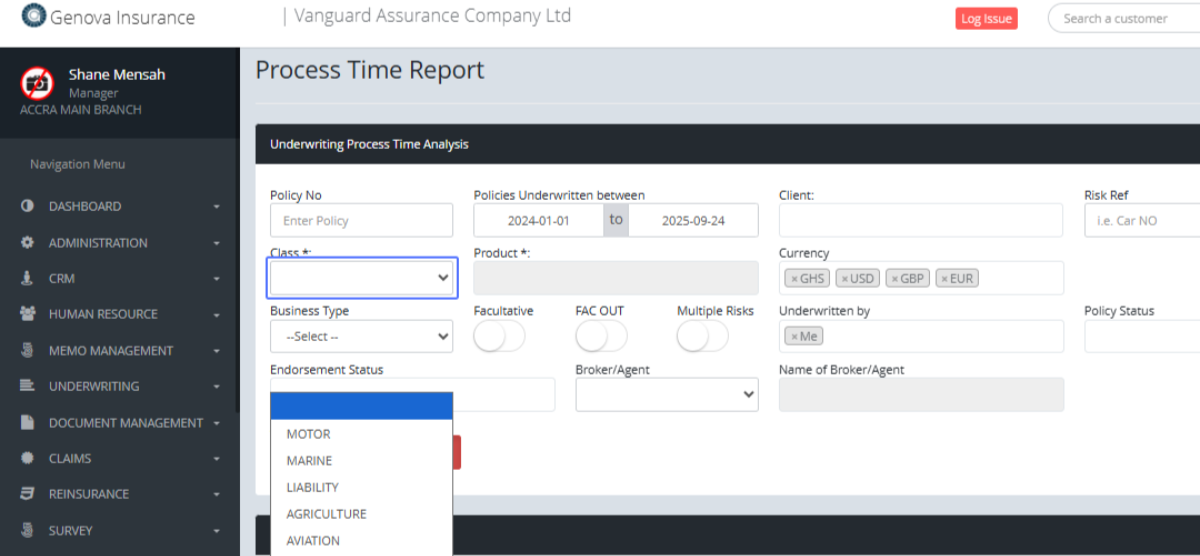
Selecting the Class of Business: You can further filter your reports by the Class of Business
Selecting the Risk Types (optional, multiple selection): You can also further filter by the product.
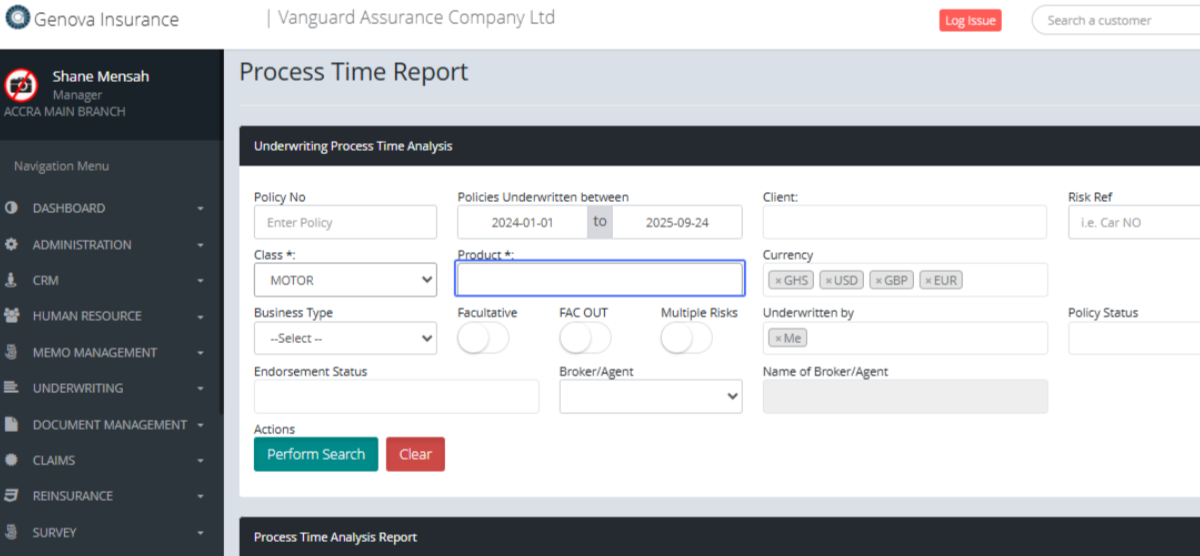
Selecting the Product Name: Click on the Product you want to filter by.
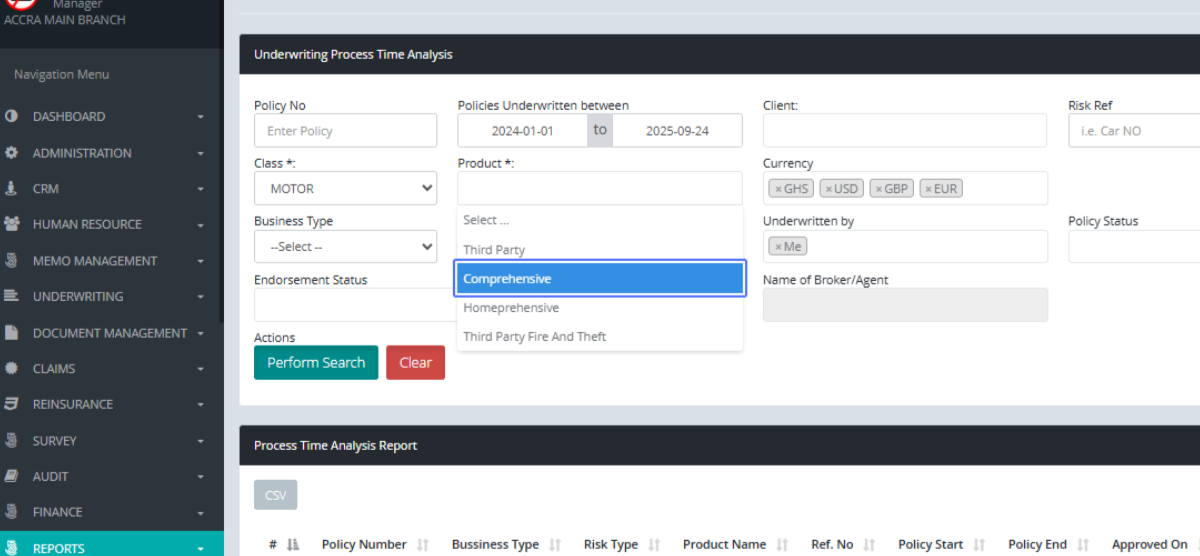
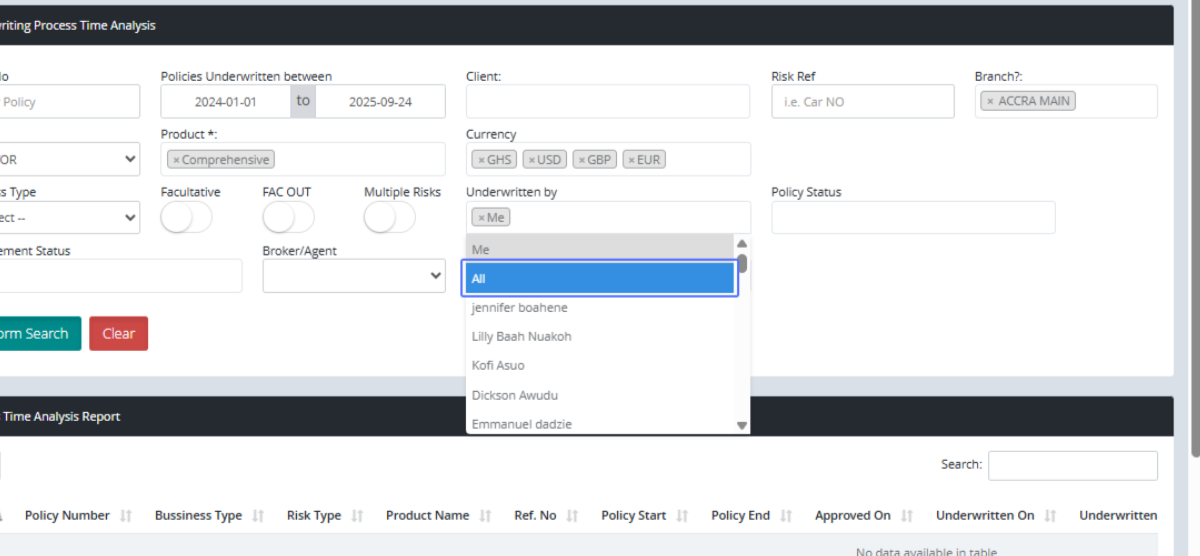
Selecting the Created By User: The system automatically assumes you want you filter policies underwritten by you, within this section, you can filter by Everyone or some specific people.
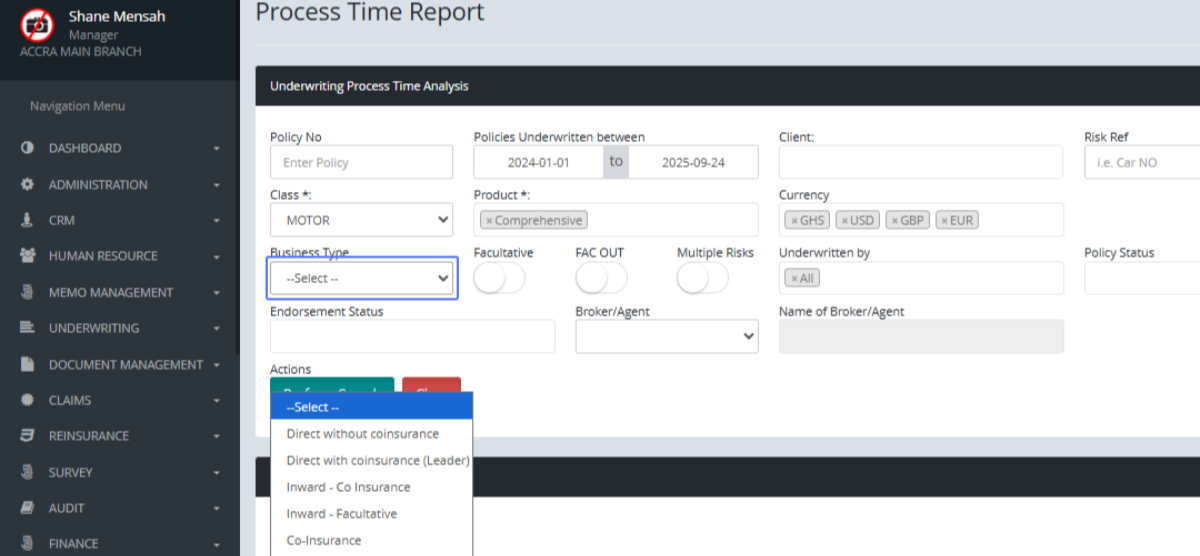
Selecting the Business Type: You can also select the Business Type you want to filter by.
Performing the Search: When all parameters fit your preferences, click “Perform Search” to generate your report.
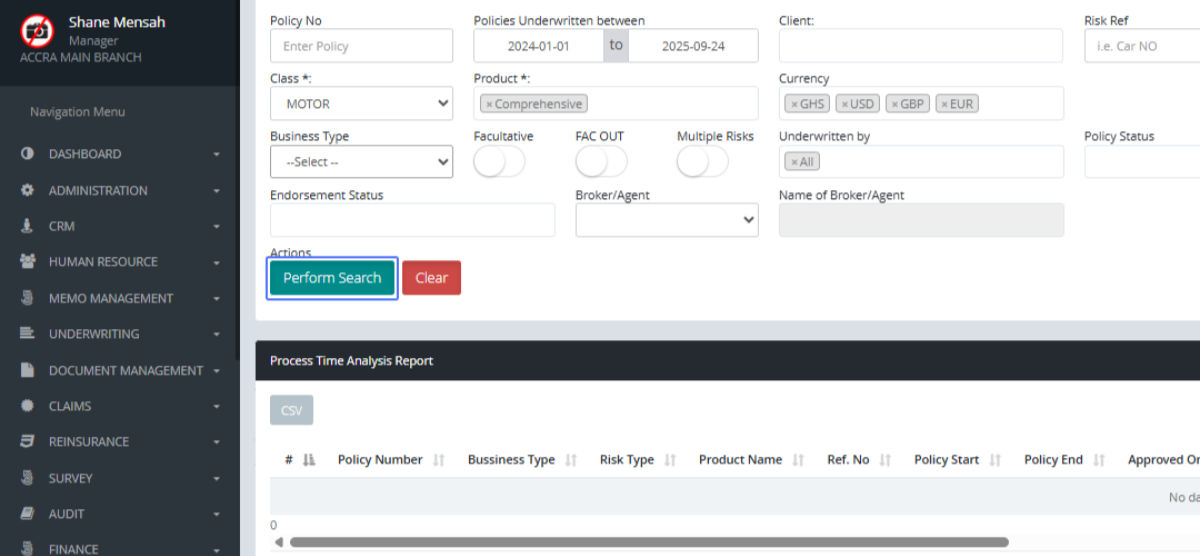
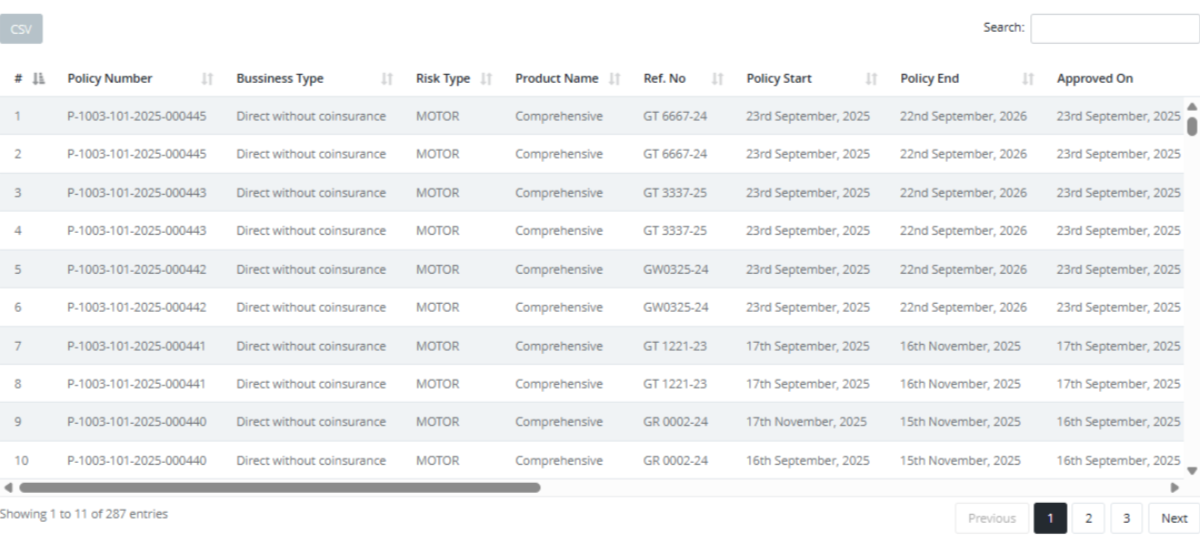
Viewing the Generated Report: The reports is generated at the bottom of the screen; Users can also click the CSV button to generate a CSV excel file.